Required Class Mappings
Use this page to find CIEL concepts that are expected to map to a target terminology but currently do not, then review trusted mapping suggestions before writing an approved mapping to OCL.
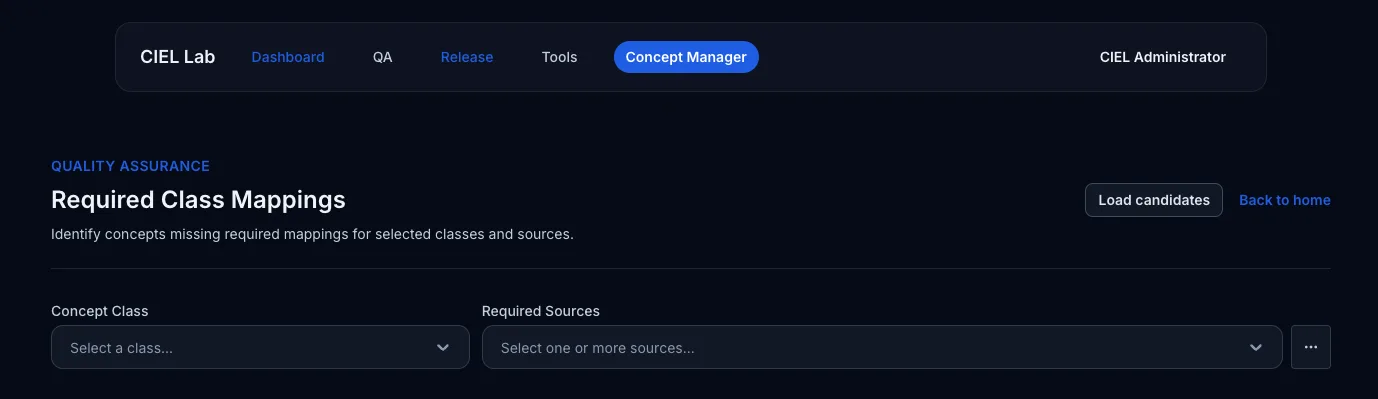
The candidate import is a review aid: importing a file does not create or change an OCL mapping. A curator must still review the concept, candidate, mapping relationship, and target terminology before saving the mapping.
Before you start
- Have access to Quality Assurance and the CIEL version or HEAD that you intend to review.
- Prepare a trusted
.csvfile. The importer accepts comma- or semicolon-separated CSV files. - Know the target terminology source for each suggestion and, when using a Map ID, the source of the existing mapping used to identify the CIEL concept.
- Use current HEAD data for Map ID resolution. This lookup uses the local HEAD mapping index, not a live terminology search.
Prepare the candidate file
The fastest import uses these standard column names:
| Column | Required | Meaning |
|---|---|---|
concept_id |
No | CIEL concept identifier. Omit it only when you will identify the concept by Map ID. |
source |
Yes | Target source of the proposed mapping, such as SNOMED-CT or LOINC. |
code |
Yes | Proposed target code in that source. |
map_type |
No | Proposed relationship, such as SAME-AS or NARROWER-THAN. |
code_description |
No | Readable description of the proposed code. |
When the file contains exactly concept_id, source, and code, the import
starts immediately. For different headers, the import wizard lets you map file
columns to the fields above or select one fixed target source for every row.
Choose the identity check
The importer supports two distinct ways to identify the CIEL concept. Choose the one that matches the evidence in the candidate file.
| Check | What the file identifies | Best use | Review required |
|---|---|---|---|
| Concept ID | The CIEL concept directly, through concept_id. |
A CIEL worklist, export, or curated file that already records the CIEL concept ID. | Confirm that the ID still represents the intended CIEL concept and that the proposed target mapping is correct. |
| Map ID | A CIEL concept indirectly, through the code and source of one of its existing mappings. | Curated candidates from another terminology that preserves CIEL mappings as mapping references. For example, use this for an IMO Procedures dataset that carries a reference mapping code rather than a CIEL concept ID. | Review the resolved CIEL concept. Resolve or exclude ambiguous matches; do not assume the first result is correct. |
In both modes, source and code describe the proposed target mapping. In
Map ID mode, Map ID column and Map ID source instead identify the
already-existing CIEL mapping used as the reference lookup. They can therefore
be different from the proposed target source and code.
Load a candidate set
- Open Quality Assurance > Required Class Mappings and select Load candidates.
- Select the
.csvfile. Optionally enter a clear Provenance value, for exampleIMO Procedures (SNOMED CT), so later reviewers can identify the curated set. - Select Upload.
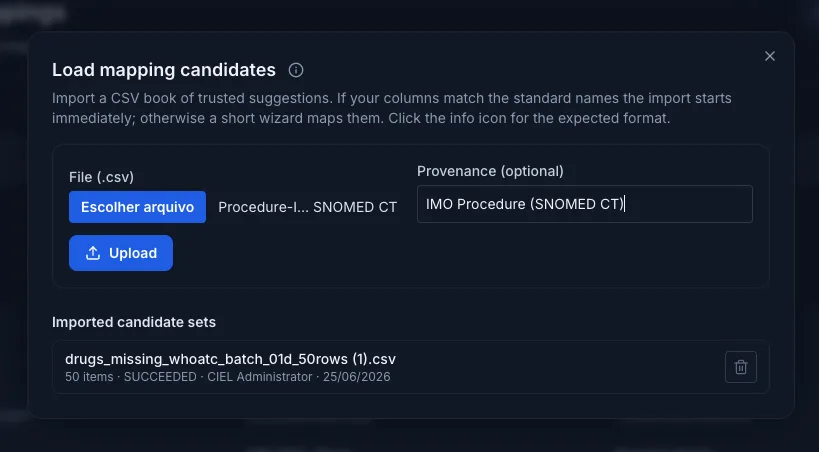
- If the file uses the standard headers, wait for the import to complete. If not, complete the short wizard described below.
Concept ID path
- In Step 1 · Concept ID column, select the file column holding the CIEL ID.
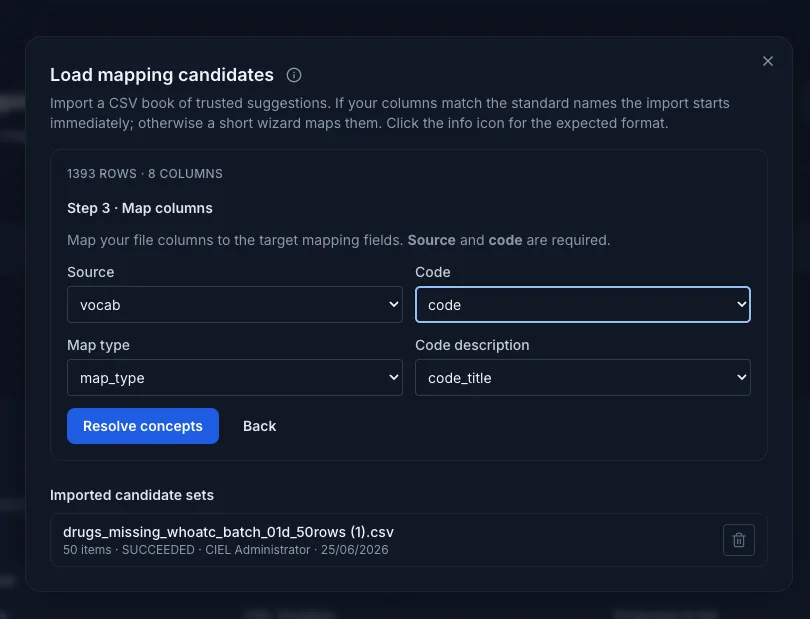
- In Step 3 · Map columns, select the proposed mapping's Source and Code. Optionally select Map type and Code description.
- Select Import and wait for Import complete.
Use this path when the file's CIEL identity has already been verified. It does not perform a reverse mapping lookup.
Map ID path
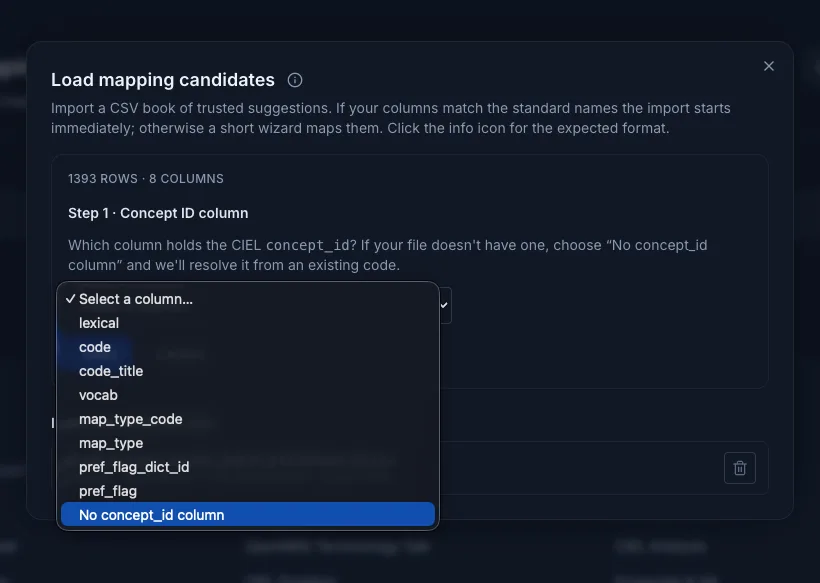
- In Step 1 · Concept ID column, select No concept_id column.
- In Step 2 · Map ID lookup, select the Map ID column and the Map ID source. These are the existing mapping reference, not the proposed target.
- In Step 3 · Map columns, map the proposed target's Source and Code; add Map type and Code description when supplied.
- Select Resolve concepts.
- Review the resolution table. Single matches are preselected. For every row marked ambiguous, inspect each listed CIEL concept and select only the intended one. Rows marked not found are not imported.
- Select Import n approved.
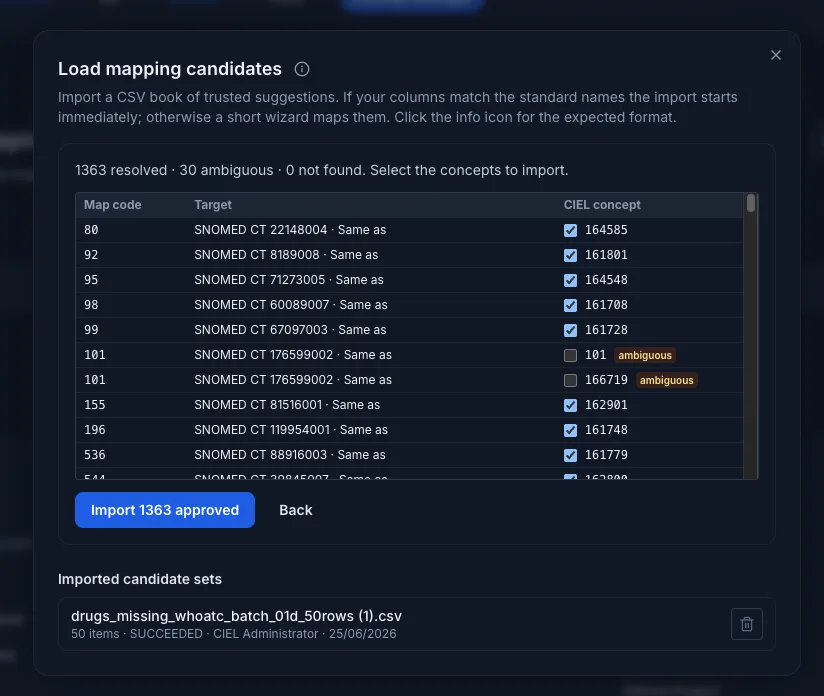
This explicit approval step makes Map ID suitable for the IMO workflow: an external dataset can contribute curated mapping suggestions without allowing an indirect reference code to silently choose a CIEL concept.
Verify the import and apply a mapping
The progress panel reports inserted candidates, concepts not found, and duplicates removed. The saved set remains visible under Imported candidate sets with its provenance and status.
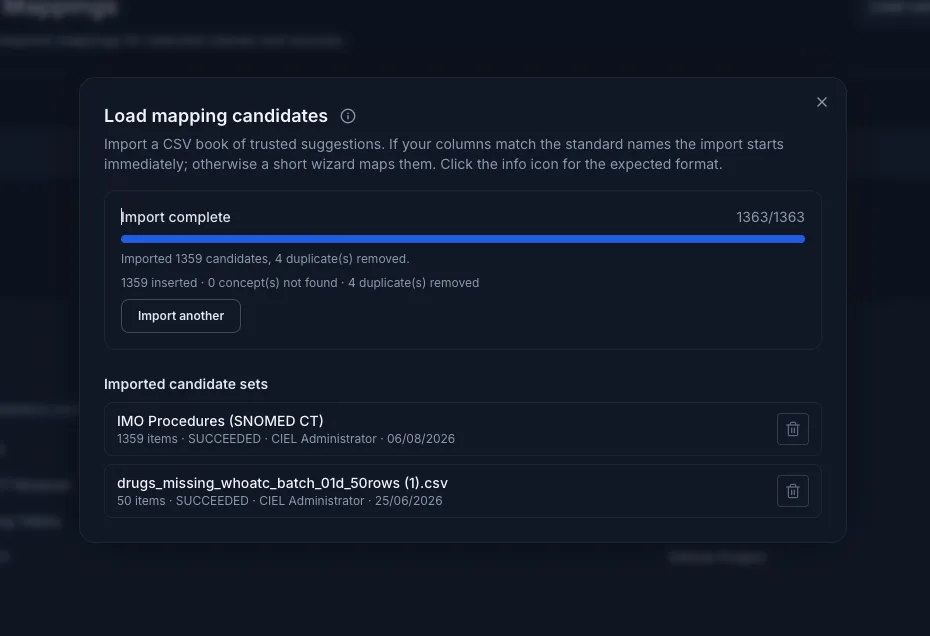
Then use the candidates in the normal required-mapping review:
- Select the CIEL version or HEAD, the Concept Class, and the required target source or sources.
- Run the query and open a result.
- Review the concept's current names and mappings, then inspect its candidate code in the authoritative external terminology.
- Confirm the target source, code, and map type; save only the approved OCL mapping.
- Rerun the query to confirm the concept no longer appears as missing the required mapping.
Candidate suggestions are aids, not authoritative replacements. If the desired target does not appear, use Code Search and enter a manually verified mapping.
Focus the review on imported candidates
After selecting the target source or sources, use Show only concepts that have candidates to limit results to imported suggestions. Use Show only concepts with unaccepted candidates to find rows where at least one imported candidate is not among the concept's current mapping codes. If the reviewer must replace an existing mapping, also select Show concepts even if they already have mappings.
An imported candidate is shown ahead of semantic suggestions. A yellow + button means that its code conflicts with the current mapping for that source; open the suggestions, compare the code and relationship, and select Approve suggestion only after authoritative terminology review. Approving a suggestion does not bypass the final OCL mapping save.
Read mapping status correctly
The page distinguishes a missing required mapping from other mappings that are shown for context. Other mappings excludes mappings that are retired, system-managed, or not eligible for this review. When an external code is available, its displayed status can also show that the external term is inactive. Treat that status as a prompt to verify the source terminology, not as authorization to replace a mapping automatically.
In the Concept Manager, direct mappings are shown separately from inverse relationships. A relationship that points to the current concept must not be read as a mapping owned by that concept. Confirm the source, direction, code, and map type before accepting or changing any candidate.
Multiple mappings, limits, and recovery
Some concepts legitimately need more than one mapping. Review the semantic relationship and map type instead of assuming the first candidate replaces all existing mappings. You can save known changes and leave unresolved candidates for a later worklist.
- The import accepts CSV only. Correct a file with missing required values or an unrecognized target source, then upload it again.
- Map ID resolution is limited to 5,000 rows per interactive lookup. Split a larger file into reviewed batches.
- A missing or unexpected Map ID result can mean that the chosen reference source is wrong, the mapping is absent from the HEAD index, or more than one CIEL concept has that reference mapping. Refresh or verify the current CIEL mapping before retrying.
- Duplicate candidate rows are removed during import. Deleting an imported candidate set removes the review suggestions, not OCL mappings that a curator already saved.